

Projects
Welcome to my portfolio/projects page.
These are projects I worked on in my spare time.
Much of my experience centers on creating work aligned with company development and expectations.
I modified the following videos and slides to showcase my creativity a little bit more.
Video Sample - eLearning Instructional Guide
The following video is a snippet of a video I created for a previous employer. I wrote the script and created the content using TechSmith Camtasia.
The video containing a bit of my employer's software is pixelated/blurred on purpose for proprietary purposes.
Client: Employer
Responsibilities: Instructional design, eLearning development
Tools Used: Camtasia, PowerPoint, and Illustrator
Target Audience: Customer training
Budget: -
Project Length: 2 hours
Remote Work Interactive eLearning Lesson
This modified Storyline Template and created a simple, short learning module to provide tips for remote work.
For the best experience, follow the bubbles as they shrink with your mouse
Client: Personal Professional development
Responsibilities: Instructional design, eLearning development
Tools Used: Articulate Storyline, storyset.com- Can be modified for PowerPoint
Target Audience: Employees going remote
Budget: -
Project Length: 2 days
Articulate RISE 360- Course Example
Client: Personal Professional development
Responsibilities: Instructional design, eLearning development
Tools Used: Articulate RISE 360
Target Audience: Education about Synesthesia
Budget: -
Project Length: 2 days
Articulate RISE 360- Course Example
Client: Personal Professional development
Responsibilities: Instructional design, eLearning development
Tools Used: Articulate RISE 360
Target Audience: Discord Development
Budget: -
Project Length: 2 days
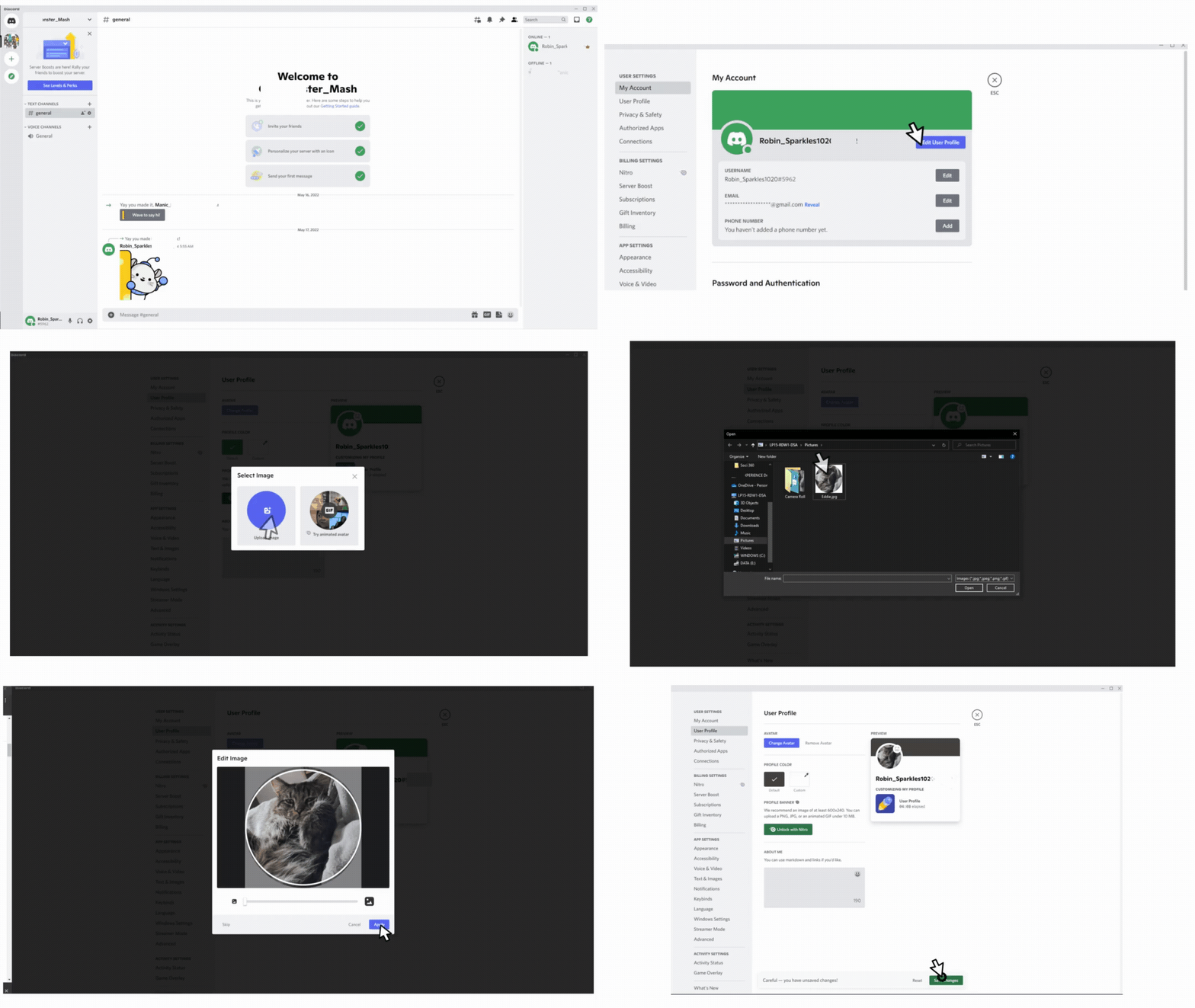
How to change your Discord Avatar- GIF
I created this GIF as part of a bigger project. I loved the end product so much that I wanted to share the GIF on this page :D
Client: N/A
Responsibilities: Instructional design, eLearning development
Tools Used: VistaCreate
Target Audience: Discord Deveopment
Budget: -
Project Length: 1 Hour
How to Delete or Deactivate your Facebook Account
The following steps will guide you through deleting or deactivating your Facebook account in Chrome 150.0.7871.47 on Windows as of July 2026.
Log into Facebook.
-
Click the profile picture in the upper right side of the screen.
-
Select settings and privacy.
-
Under the “Settings and Privacy” menu, select Settings.
-
On the “Settings & Privacy” page, select “ Accounts Center" on the left side of the screen.
-
Click “Manage Accounts”
-
Select “Manage” from the center of the “Manage Accounts” screen.
-
“Your Facebook Account” popup will appear.
-
Select “Deactivation or deletion”
NOTE: Deactivation is temporary. Your account and main profile are deactivated, and your name and photos have been removed from most of the things you've shared, but you can still use Messenger. Deletion is permanent. Your main profile and everything you've added are permanently deleted and cannot be retrieved, including all additional profiles, Messenger, and all your messages. Deletion begins with a 30-day grace period; if you log back in during that window, the deletion is canceled. Choose the option that best suits your needs.
9. Enter your password to confirm.
10. Enter “Reason for Leaving”
Follow the on-screen instructions to confirm. Facebook displays a confirmation once your account is deactivated or deleted.
Technical Writing Sample: User Guide
Needs analysis: Meta’s help center tends to go out of date on a monthly basis, I created this how-to guide to help users quickly deactivate or delete their account.